Download the installation media
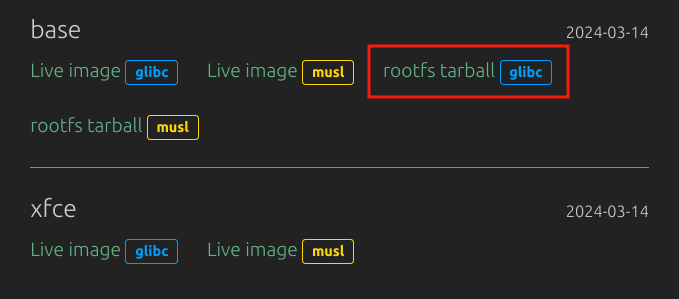
At first, go to the download page of void linux and download rootfs tarball (i downloaded the glibc version).
Create partitions
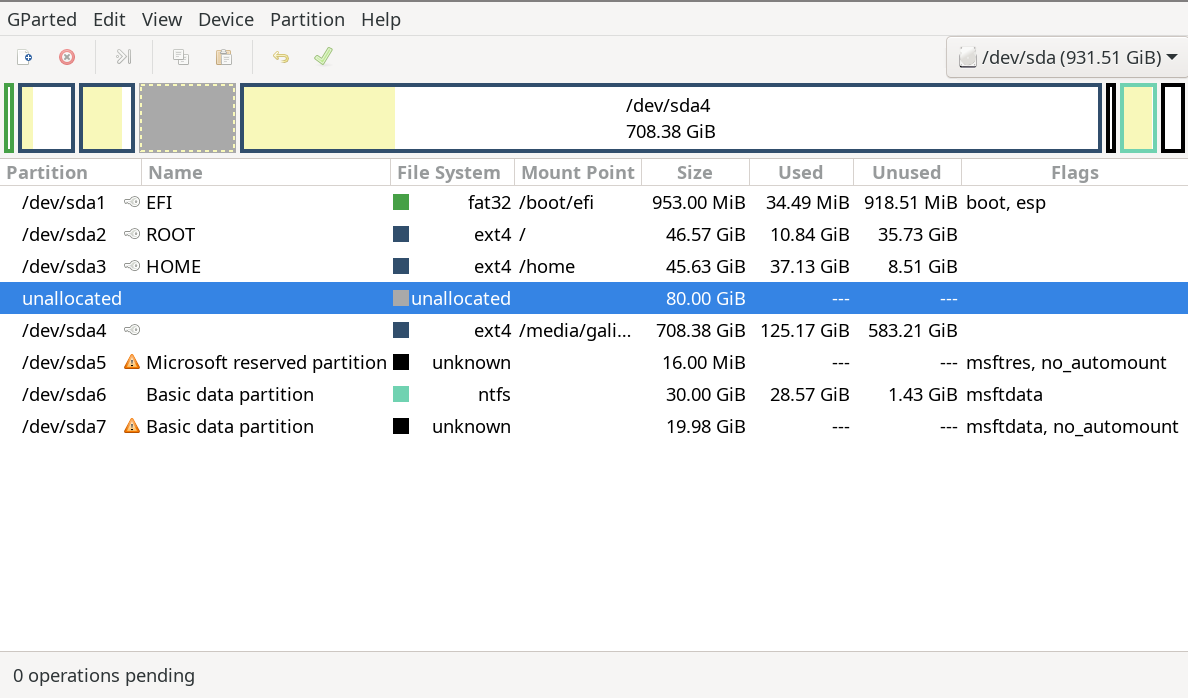
For simplicity, i created only the root partition /, no swap, no EFI partition. My existing system already has an EFI partition mounted at /boot/efi. I used gparted for creating partitions.
Launch gparted and manage some unallocated space. I shrunk one of my existing partitions and kept 80 GB of unallocated space.
Now create a partition in that space and format it to ext4.
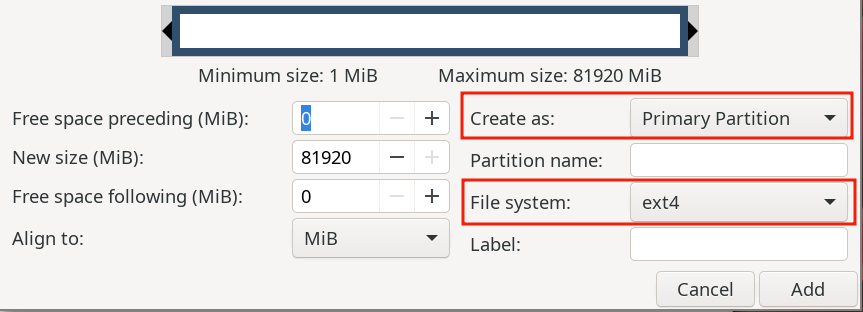
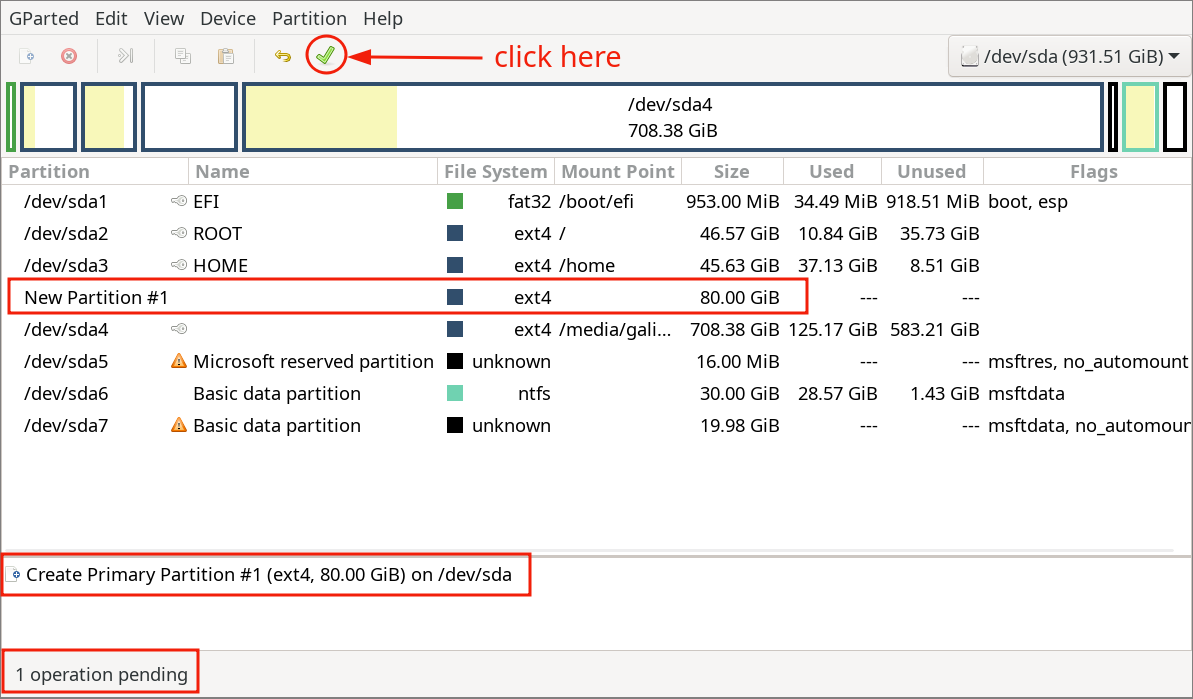 This will create a new 80 GB ext4 partition and it will be named as
 /dev/sdXY or /dev/nvmeXnYpZ. On my device the new partition is /dev/sda8.
Create a chroot environment
- Mount the newly created partition to
/mntand extract the rootfs tarball to/mnt
sudo mount /dev/sda8 /mnt
sudo tar xvf path/to/the/tarball -C /mnt
- Now download the xchroot program from xtools repository & make it executable.
wget https://raw.githubusercontent.com/leahneukirchen/xtools/refs/heads/master/xchroot
chmod +x xchroot
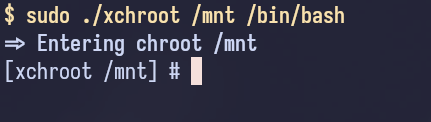
- Now enter the chroot.
sudo ./xchroot /mnt /bin/bash
Install the base system
xbps-install -Su xbps
xbps-install -u
xbps-install base-system
xbps-remove base-container-full
Configure the system
We may need to do some editing. So, install neovim (or any other terminal based text editor with which you are familiar with)
xbps-install neovim
Now set the hostname in /etc/hostname file.
echo voidlinux > /etc/hostname
Set the root password.
passwd
Now add a normal user and add him to necessary groups. Set a password for the user and modify the sudoers file to allow root permissions.
useradd -m name_of_user
usermod -aG wheel,audio,video,storage,network,input,plugdev,users name_of_user
passwd name_of_user
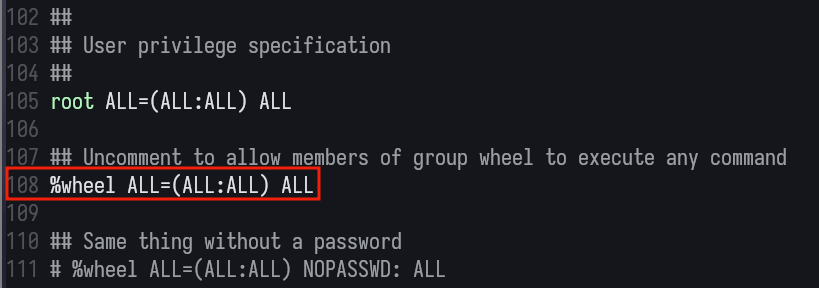
EDITOR=nvim visudo
Uncomment the following line to allow users of the wheel group root permissions.
Configure the /etc/fstab file.
It is the file that defines where to mount which partition on boot automatically. The root partition is at /dev/sda8 in my case.
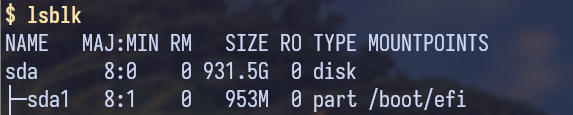
Find the EFI partition from debian. No need to exit the chroot, just launch another terminal and run lsblk. Look for the partition mounted at /boot/efi which is /dev/sda1 in my case.
 Write the
 /etc/fstab file as follows
echo "/dev/sda8 / ext4 rw,relatime 0 1" > /etc/fstab
echo "/dev/sda1 /boot/efi vfat rw,relatime,umask=0077,errors=remount-ro 0 2" >> /etc/fstab
echo "tmpfs /tmp tmpfs defaults,nosuid,nodev 0 0" >> /etc/fstab
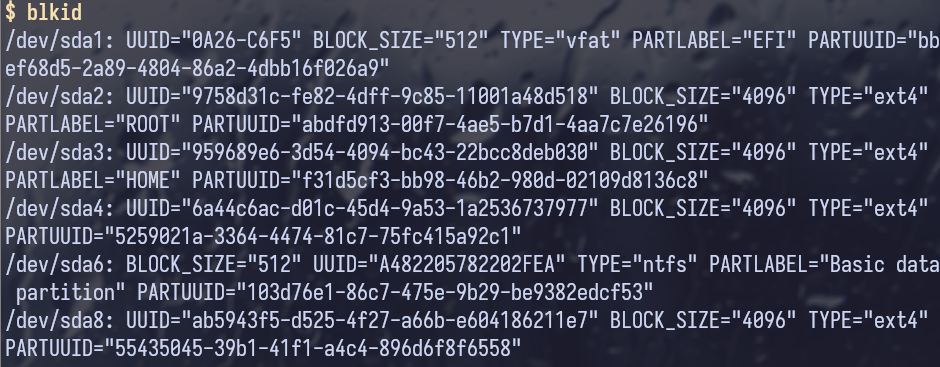
Now use the blkid command to get the UUID of the partitions and replace /dev/sdXXs with their UUIDs in the /etc/fstab file.
 Now the
 /etc/fstab file should look like this
 Make the
 /boot/efi directory because we did not mount it in the chroot
Installing NetworkManager
Install NetworkManager to manage wired and wireless networks.
xbps-install NetworkManager
Enable necessary services to make NetworkManager usable.
ln -s /etc/sv/dbus /etc/runit/runsvdir/default/
ln -s /etc/sv/NetworkManager /etc/runit/runsvdir/default/
Final steps
Reconfigure the system, all the installed packages and exit the chroot.
xbps-reconfigure -fa
exit
Update grub in your debian system to list voidlinux in the grub menu.
sudo update-grub
Now reboot and select Void Linux from the grub menu.